Tip & Tax is a fast tip, tax and bill-splitting calculator for Android, with a travel tipping guide for 50 countries and regions. It works offline, needs no account or sign-up, and every calculator and guide feature is free.
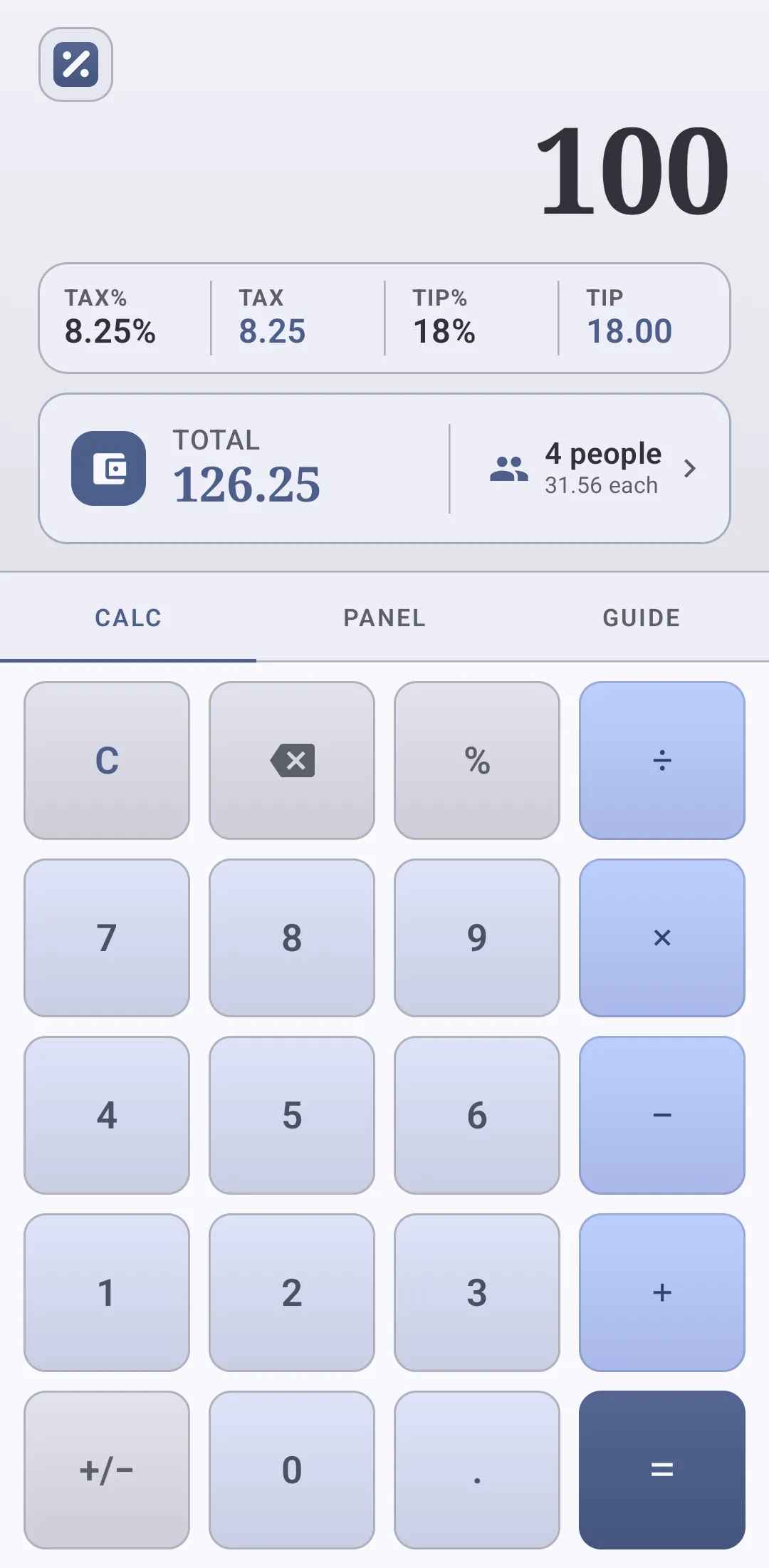 One screen for the bill, the tip, the tax and each person’s share.
What you can do
- Work out a tip, a tax, or both on any bill.
- Set the tip or tax by percentage, or type the exact amount you want to leave.
- Split the total across as many people as you like.
- Read practical tipping guidance for 50 countries and regions.
- Use everything offline. An internet connection is only needed for ads and for the optional purchase that removes them.
The calculator screen
The app opens on the calculator. The top of the screen is the display: the amount you are typing (or
the result) is the large number, the running calculation appears above it, and a card underneath
divides the tax and tip into four cells — TAX%, TAX, TIP%, TIP.
All four cells are tappable: TAX% and TIP% set a percentage, and TAX and TIP set an amount.
A second card below them shows TOTAL with the bill plus tip and tax, and the split alongside it.
Below the display are three tabs:
| Tab | What it holds |
|---|---|
| CALC | The keypad for entering bills and doing arithmetic |
| PANEL | The tip, tax and split controls, with a receipt summary |
| GUIDE | The country tipping guides |
The brand button in the top-left corner opens the menu. There is no title bar on this screen — the display fills the top edge.
Entering a bill
Type the bill amount on CALC, then add the tip and tax on PANEL (or use the four cells above the keypad). The total updates as you go:
- The large number shows exactly what you are typing, including a trailing decimal point and zeros.
- Once you use an operator, the display previews the result.
Cclears the calculation, and the backspace key deletes the last digit.%works as a percentage key for arithmetic. To set the tip or tax on the bill, use the cells or the PANEL controls instead.
The TOTAL card under the cells shows the bill plus tip and tax, with the split beside it. Tap the total to type a final total — the bill and tax stay as they are and the tip is worked out to reach it. Tap the people side to change the number of people without leaving the calculator.
Tip and tax
Open PANEL to set the tip and tax. Each has its own card with the same controls:
- Add Tip / Add Tax switches, both on by default. Turning one off removes it from the total; the percentage you set is remembered for next time.
- Tip Percent / Tax Percent with
−and+buttons that move in steps of 0.5, from 0% to 100%. - Tip Amount / Tax Amount with
−and+buttons that move in steps of 0.5, showing what the percentage costs on the current bill. The amounts are editable too.
The two fields work both ways: change the percentage and the amount follows, or type an amount and the app works out the percentage that produces it.
Typing an exact percentage or amount
Tap the value itself — on PANEL, or one of the four cells above the keypad — to type an exact
number instead of stepping. TIP% / TAX% type a percentage; TIP / TAX type an amount. The
dialog shows what the number works out to as you type it, and its − / + buttons step the value
by 0.5 (one person for the split) without closing it.
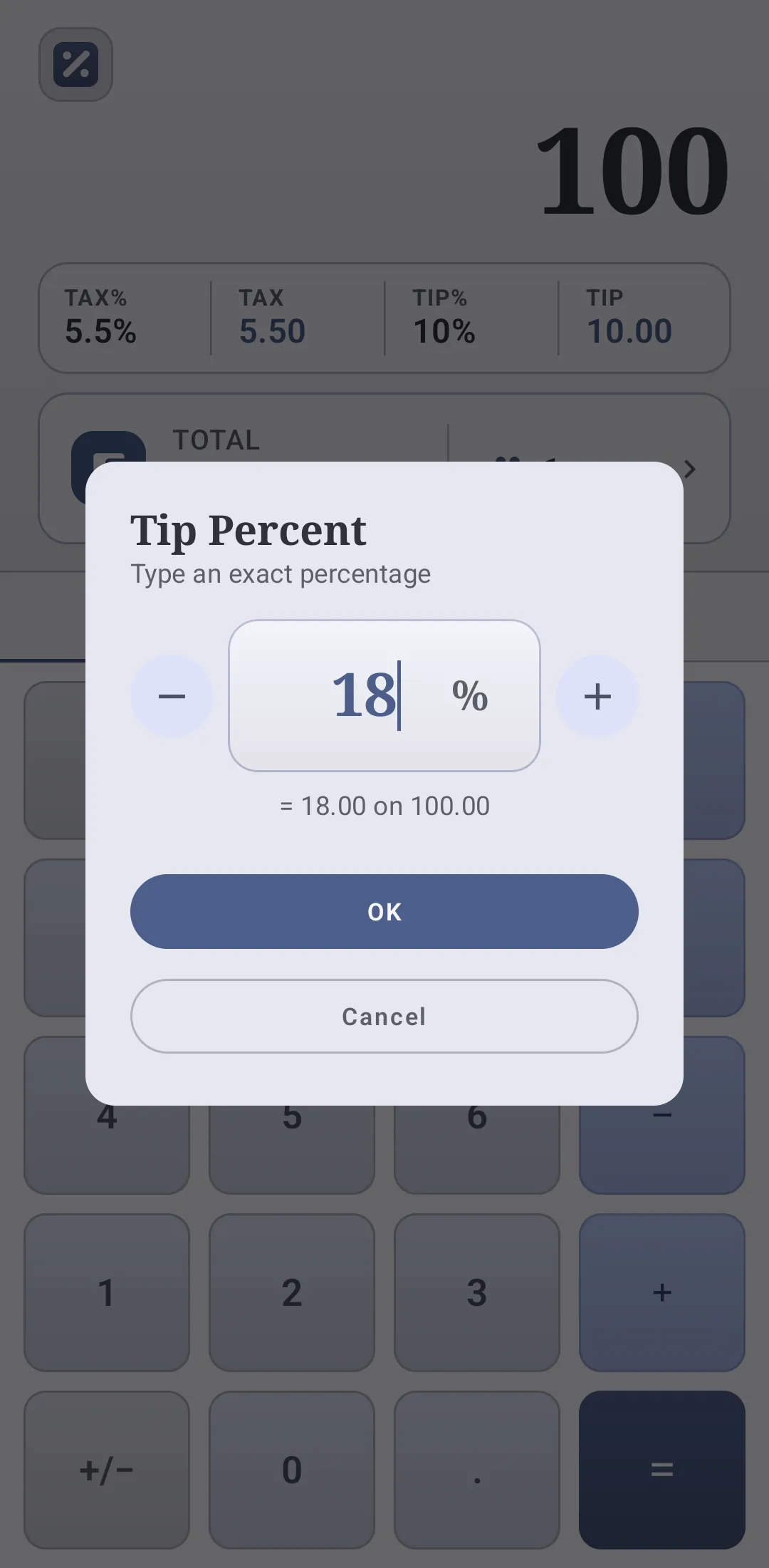 Tap a percentage or an amount to type an exact value.
An amount larger than the bill is allowed: the percentage simply goes above 100%. The percentage is what the app remembers for the next launch, so an amount typed on one bill becomes a percentage when you change the bill.
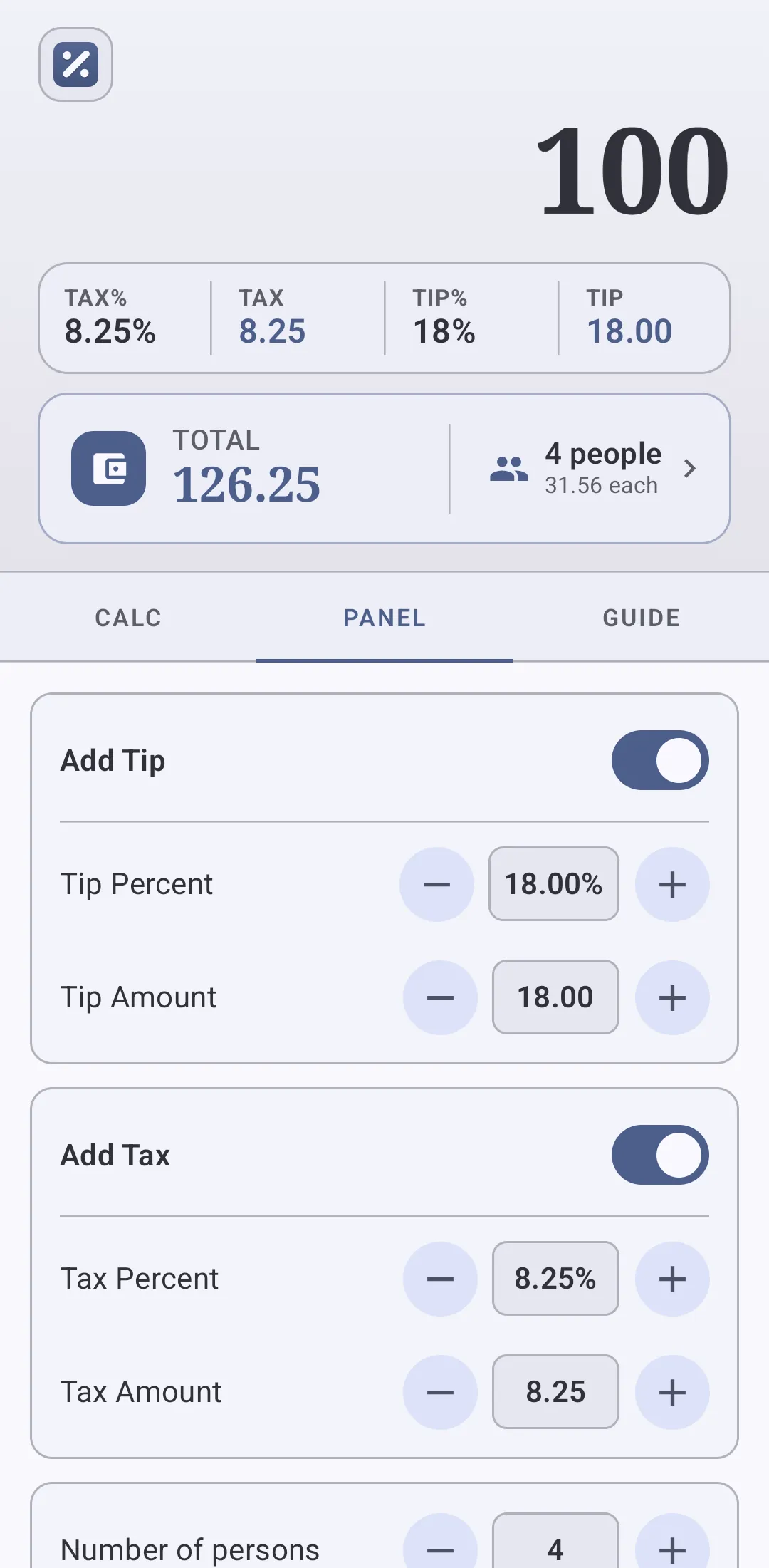 Tip and tax cards, the person count and the receipt summary.
Splitting the bill
In the third PANEL card, set Number of persons with − and +, or tap the number to type an
exact count. The minimum is one person. The receipt summary at the bottom then shows Total bill
and, when there is more than one person, Each person pays with the number of people.
You can also tap the people side of the TOTAL card on the calculator to type the number of people directly. The card shows the split whenever a bill is entered, even with one person.
The number of people can be remembered between launches — see Startup defaults.
How the numbers are worked out
tip   = bill × tip percent ÷ 100
tax   = bill × tax percent ÷ 100
total = bill + tip + tax
each  = total ÷ number of people
If you type an amount instead of a percentage, the app solves the first two lines backwards:
tip percent = tip ÷ bill × 100 (and the same for tax). The percentage is what is remembered for the
next launch, so a typed amount becomes a percentage when the bill changes, and an amount larger than
the bill shows a percentage above 100%.
Typing the final total works the tip out backwards instead: tip = total − bill − tax. If the total
is below the bill plus tax, the tip becomes 0 and the total stays at bill plus tax.
For example, with a 100.00 bill, an 18% tip, 8.25% tax and 4 people:
- Tip: 18.00
- Tax: 8.25
- Total: 126.25
- Each person pays: 31.56
Tip and tax amounts are always shown to two decimals. There is no currency setting and no
currency symbol: amounts are plain numbers, so enter the bill in whatever currency you use. Decimals
always use a dot and thousands a comma (1,234.50), whatever the phone’s language.
If the tip and tax are both zero — or both switched off — the app shows only the bill amount and no total.
Travel tipping guides
The GUIDE tab lists 50 countries and regions, each with a flag. Tap Search country guides and type to filter the list; the cross icon clears the search, and No matching countries appears when nothing matches. The menu also lists every country, so you can jump straight to one.
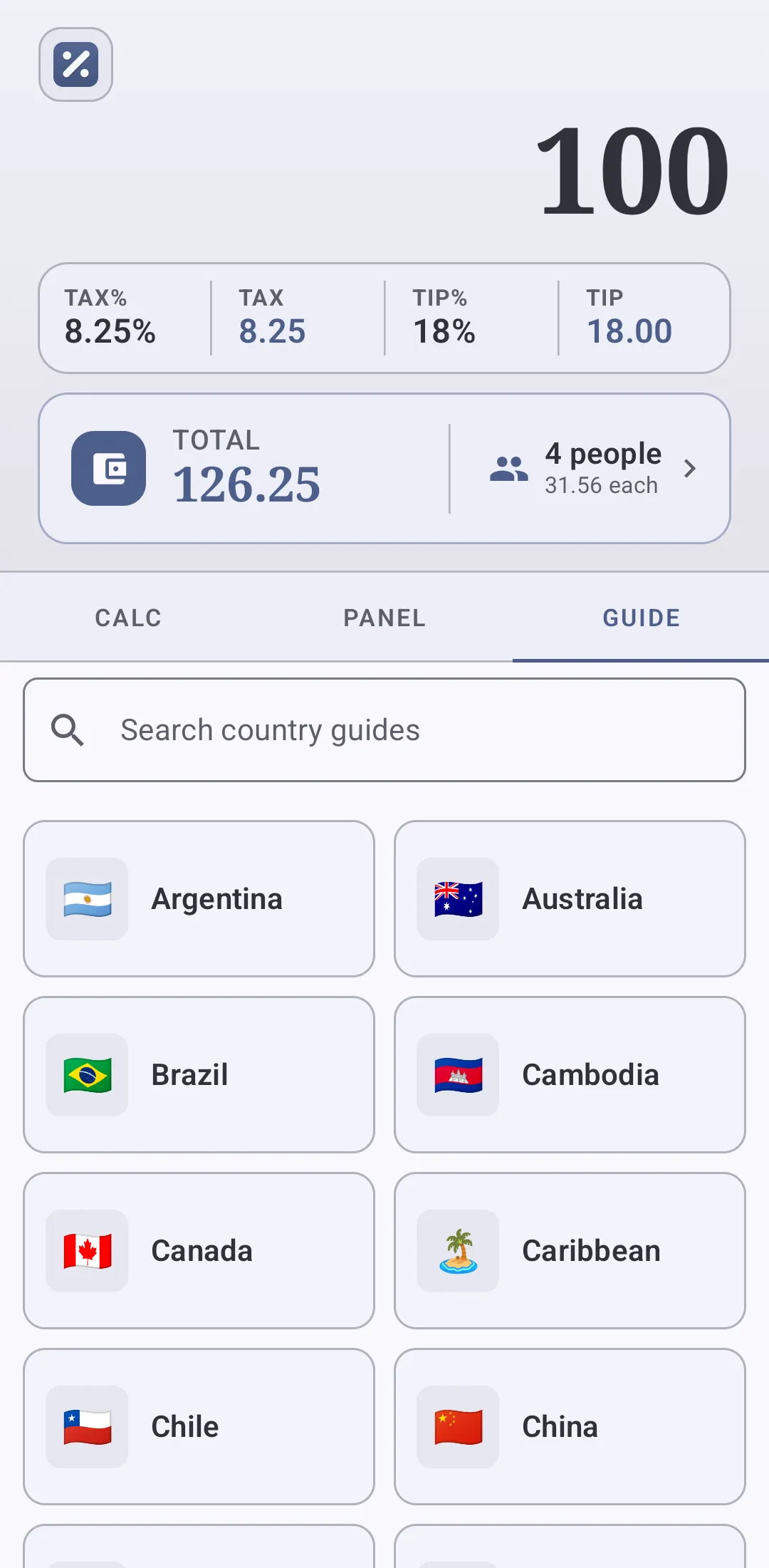 Search or scroll the country grid.
Tap a country to open its article. The title bar shows the flag and country name, and the article scrolls normally. Each guide explains who to tip, how much is usual, and where tipping is not expected. They are general guidelines, and tipping is always your choice. They are not legal, tax or financial advice.
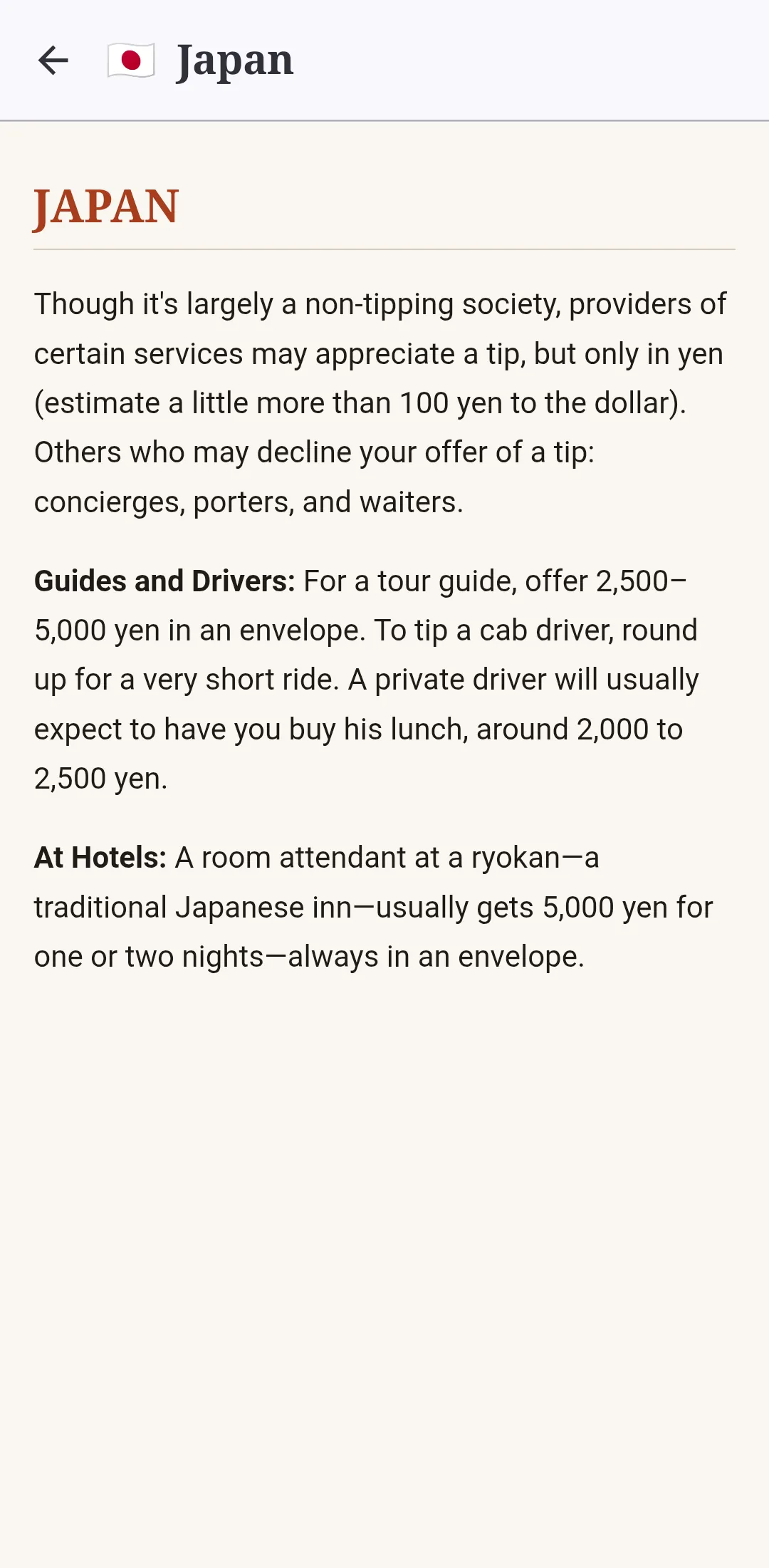 A country article, including the flag and country in the title bar.
The two regional entries — Caribbean and Scandinavia — cover several countries each.
The menu
The brand button in the top-left corner opens the menu. It contains Settings and the full list of
Country Tipping Guides. The back button or back gesture closes the menu without leaving the app.
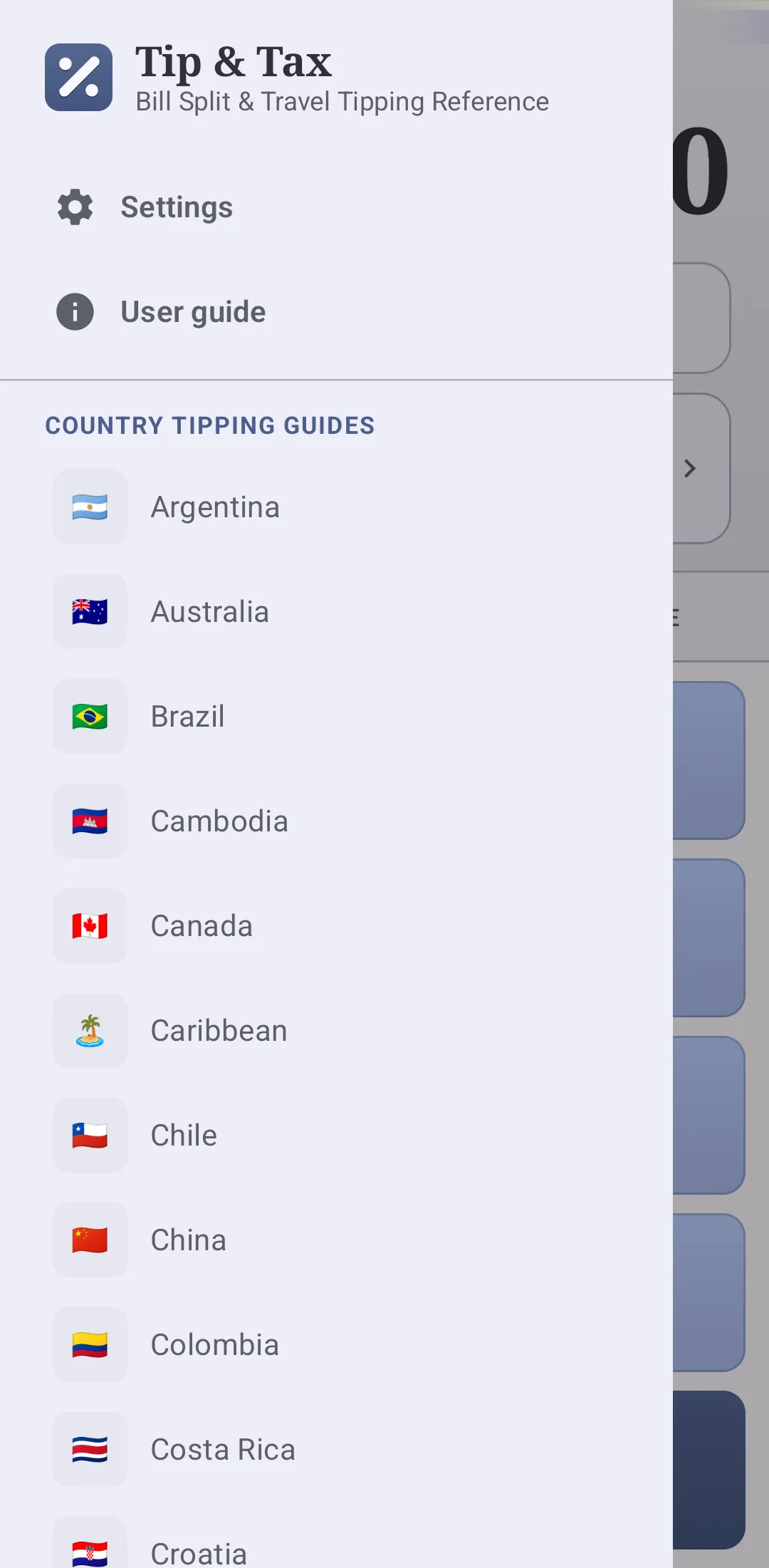 Settings and every country guide live in the menu.
Settings
Open the menu and tap Settings. Options are grouped under ON STARTUP, THEME, HAPTIC FEEDBACK, SUPPORT and ABOUT.
Startup defaults
| Setting | Default | What it does |
|---|---|---|
| Use last bill | Off | Reopens with the last bill amount. The bill is saved when you press = or C, or change Total Amount. |
| Use last tip percent | On | Reopens with the tip percentage you used last. |
| Default tip on app launch | 10 | The starting tip when Use last tip percent is off. |
| Use last tax percent | On | Reopens with the tax percentage you used last. |
| Default tax on app launch | 5.5 | The starting tax when Use last tax percent is off. |
| Use last number of persons | On | Reopens with the last person count instead of one. |
The two Default … on app launch rows only apply while the matching Use last … switch is off. That is why they look greyed out while the switch is on — turn the switch off to edit them.
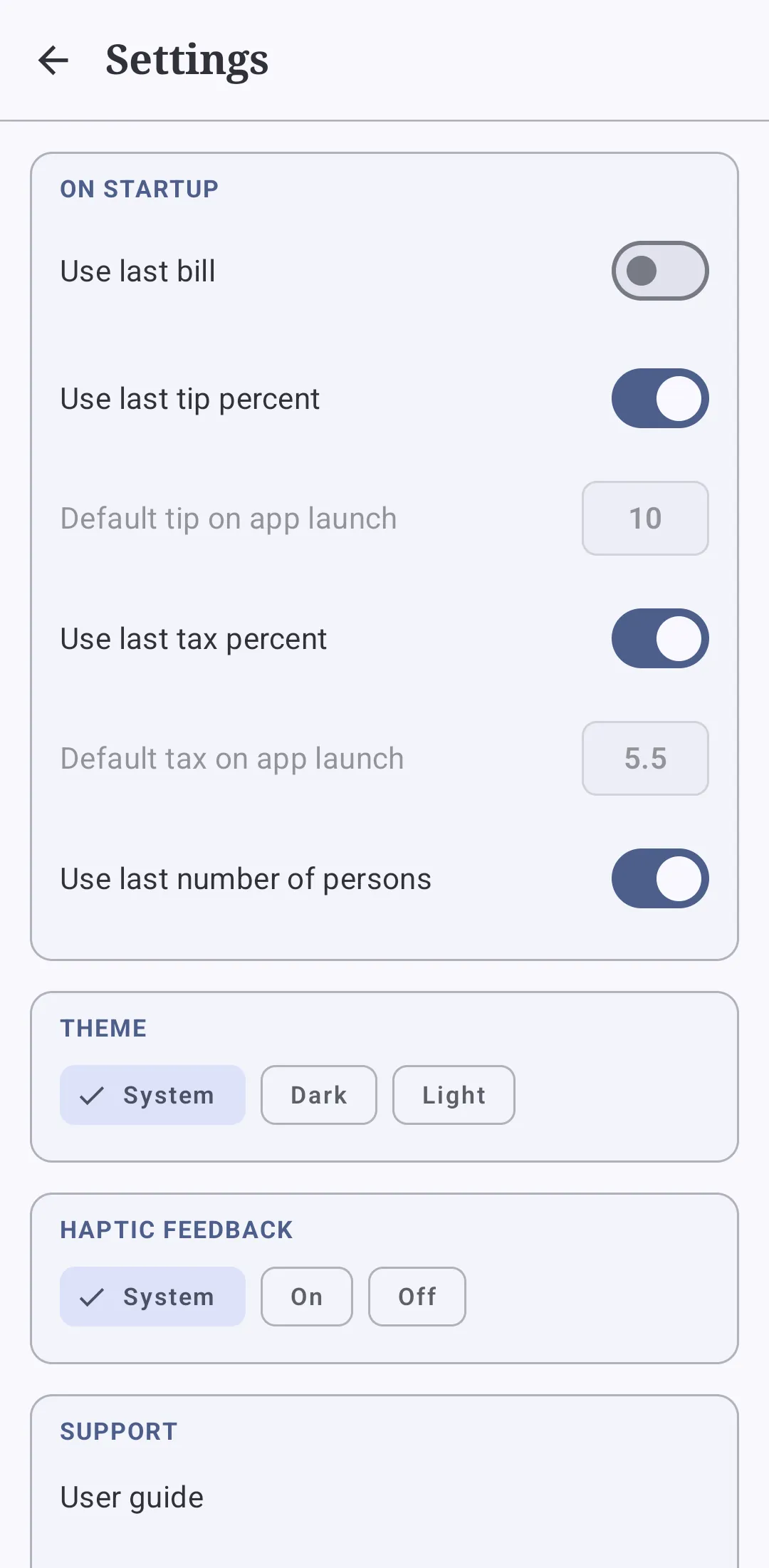 Startup defaults, theme and haptics.
Theme
System, Dark or Light. System follows the phone’s light/dark setting, and the choice applies immediately. On Android 12 and newer the app takes its colours from the phone’s wallpaper, so it matches the rest of the system.
Haptic feedback
System follows the phone’s touch-vibration setting. On always vibrates on taps, and Off never does. This covers the keypad, steppers, tabs and switches.
Support and about
- Share to friends opens the Android share sheet with a short message about the app.
- Email support opens your email app addressed to support@bluecoinsapp.com. Nothing is sent until you send it.
- Version Number shows the installed version, such as
3.0.8. Please include it when contacting support. - Privacy policy opens the policy in your browser.
- Ad privacy options appears only if Google requires an ad-consent choice for you. It opens Google’s form to review or change that choice.
- Upgrade and support app (remove ads) starts the one-time purchase. After purchase the row reads Premium — thank you! and is disabled.
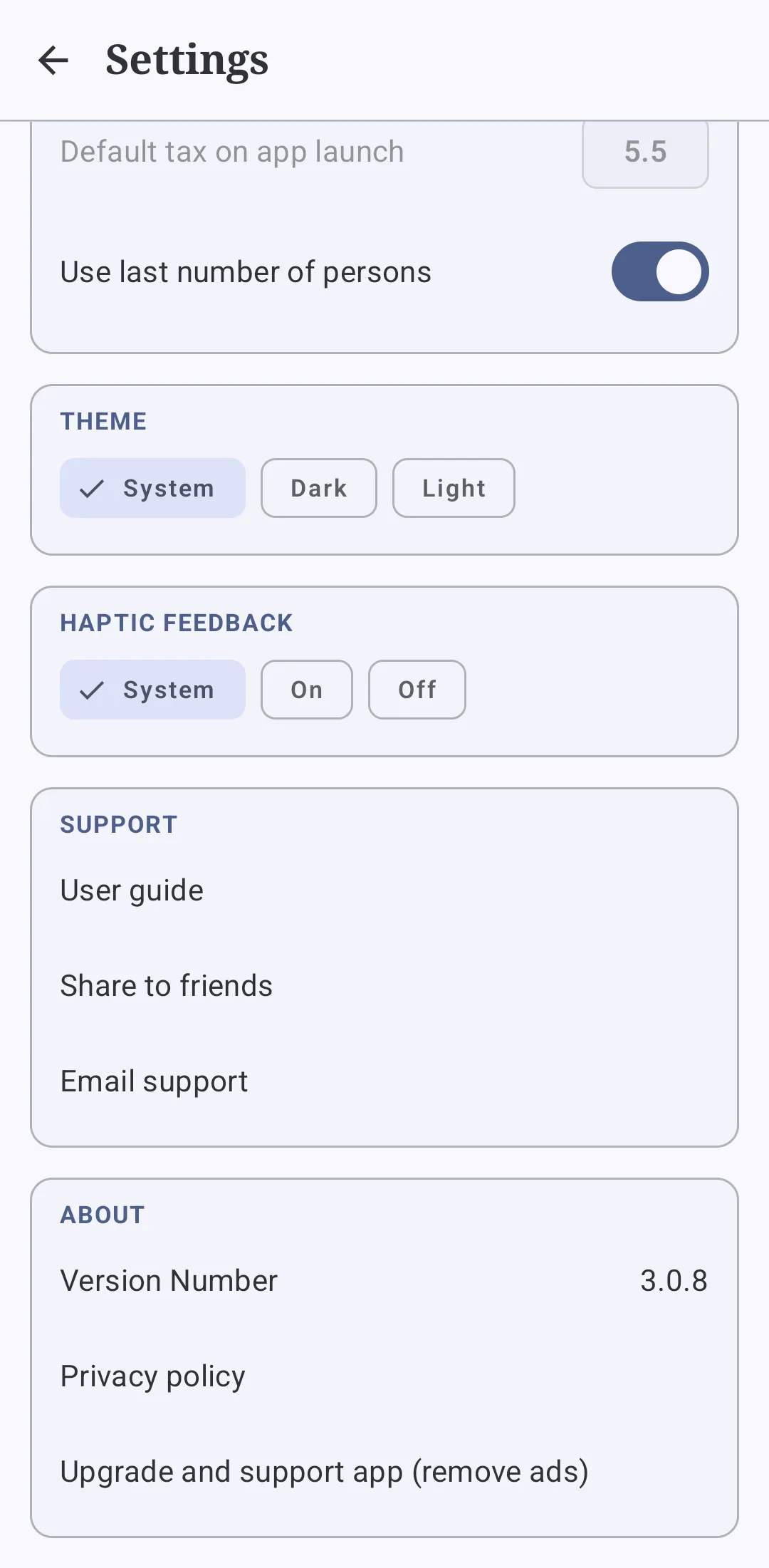 Support, version and the purchase row.
Free trial, ads and removing ads
Every calculator feature and every country guide is free, and always remains free. The only thing the trial changes is whether ads are shown.
- For one day after the app is first set up on a device, it runs without ads.
- After that, if you have not bought the remove-ads upgrade, Google ads appear: a banner at the bottom of the calculator, the guide list and Settings, and a rectangular ad inside country guide articles.
- The first time an ad is about to appear, Google may ask for your ad-consent choice, depending on where you live. Your answer is remembered and can be changed from Ad privacy options in Settings.
- Ads are never shown during the trial or after the purchase. If an ad cannot load, the space is closed up instead of being left blank.
Remove ads is a one-time purchase, not a subscription. The price is set by Google Play, varies by country, and is shown on the Google Play purchase screen in your local currency. Payment, receipts and refunds are handled by Google Play.
There is no restore button: the app checks Google Play on every launch, so a reinstall or a new device signed in to the same Google account has ads removed again automatically.
If you paid but still see ads
- Check that you are signed in to Google Play with the same Google account you bought with.
- Make sure the Play Store app is up to date and the device is online.
- Close Tip & Tax completely, then reopen it so the purchase check runs.
- If ads still appear, contact support with your Google Play order number (it starts with
GPAand is in the emailed receipt) and the Google account email.
Privacy
- There is no account, profile or cloud sync.
- Bills, percentages, person counts and settings are stored only on your device.
- Ads are served by Google AdMob, and anonymous usage analytics and crash reports come from Google Firebase. These may collect device and advertising identifiers, app usage events and crash diagnostics.
- Where local law requires it, Google’s consent form collects your choice before the first ad is requested.
The full policy is at bluecoinsapp.com/tipcalculator/privacy.
Questions and fixes
| Question | Answer |
|---|---|
The big number says Error. |
You divided by zero. Press C, or type any digit, to clear it. |
| How do I leave an exact tip amount? | Tap the amount on PANEL or the TIP / TAX cell above the keypad and type the value; the percentage updates to match. − / + also step an amount by 0.5. |
| Can I type the final total instead? | Yes. Tap the TOTAL on the calculator and type the total; the bill and tax stay and the tip is worked out to reach it. A total below the bill plus tax sets the tip to 0. |
| The total looks wrong. | Check Add Tip and Add Tax, both percentages, the person count and the bill. Also check the CALC display for a stray operator or %. |
| I bought remove ads but still see ads. | Follow the three checks above, then contact support with the Play order number. |
| Ads stopped appearing. | That is not a fault. The trial may still be running, the device may be offline, no ad may be available, or your consent choice may prevent ads. |
| There is no Ad privacy options in Settings. | It appears only when ads are eligible and Google requires a choice for you. |
| My country is not in the guide. | The guide covers the 50 countries and regions listed in the app. You can ask support to consider adding one. |
| Share to friends does nothing. | No app is installed that can receive shared text. Install a messaging or email app and try again. |
| Email support does nothing. | No email app is set up. Set one up, or email support@bluecoinsapp.com directly. |
The privacy policy says No browser app found. |
There is no browser installed. Open the policy on another device, or install a browser. |
| The app is dark although my phone is light. | Set Settings → THEME to System. |
| The colours don’t match my wallpaper. | Wallpaper colours need Android 12 or newer. Older devices use the standard theme. |
| Vibration doesn’t work. | Try Settings → HAPTIC FEEDBACK → On, and check the phone’s touch-vibration setting. |
| My last bill wasn’t restored. | Turn on Use last bill in Settings → ON STARTUP. |
| Tapping Upgrade does nothing. | Google Play has not loaded the product. Check your connection, update the Play Store app, then reopen Tip & Tax. |
| Large text is clipped. | That should not happen. Note the device and Android version and contact support. |
About this guide
Tip & Tax is published by Mabuhay Software and runs on Android 7.0 and newer, on phones and tablets. This guide describes app version 3.0.8. Screens are from an Android phone and may look slightly different on other devices and Android versions.
Support: support@bluecoinsapp.com
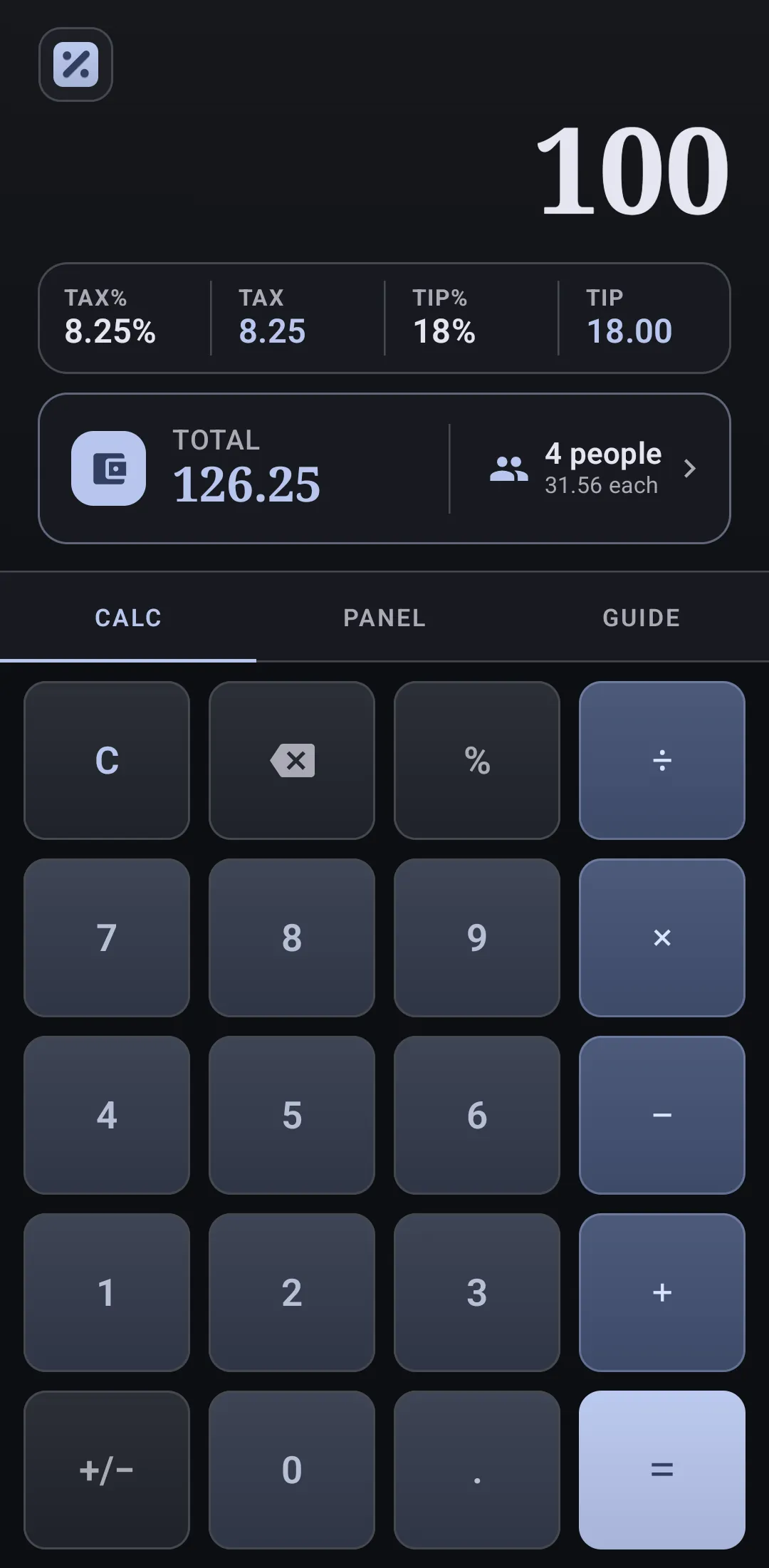 The calculator in the dark theme.