Settings
Password and fingerprint
Lock Bluecoins with a PIN, unlock with your fingerprint, protect widget transactions, and hide app previews.
The Data Security screen — the row is labeled Password and Fingerprint — locks Bluecoins against prying eyes. Open the app drawer, tap Settings, then Password and Fingerprint.
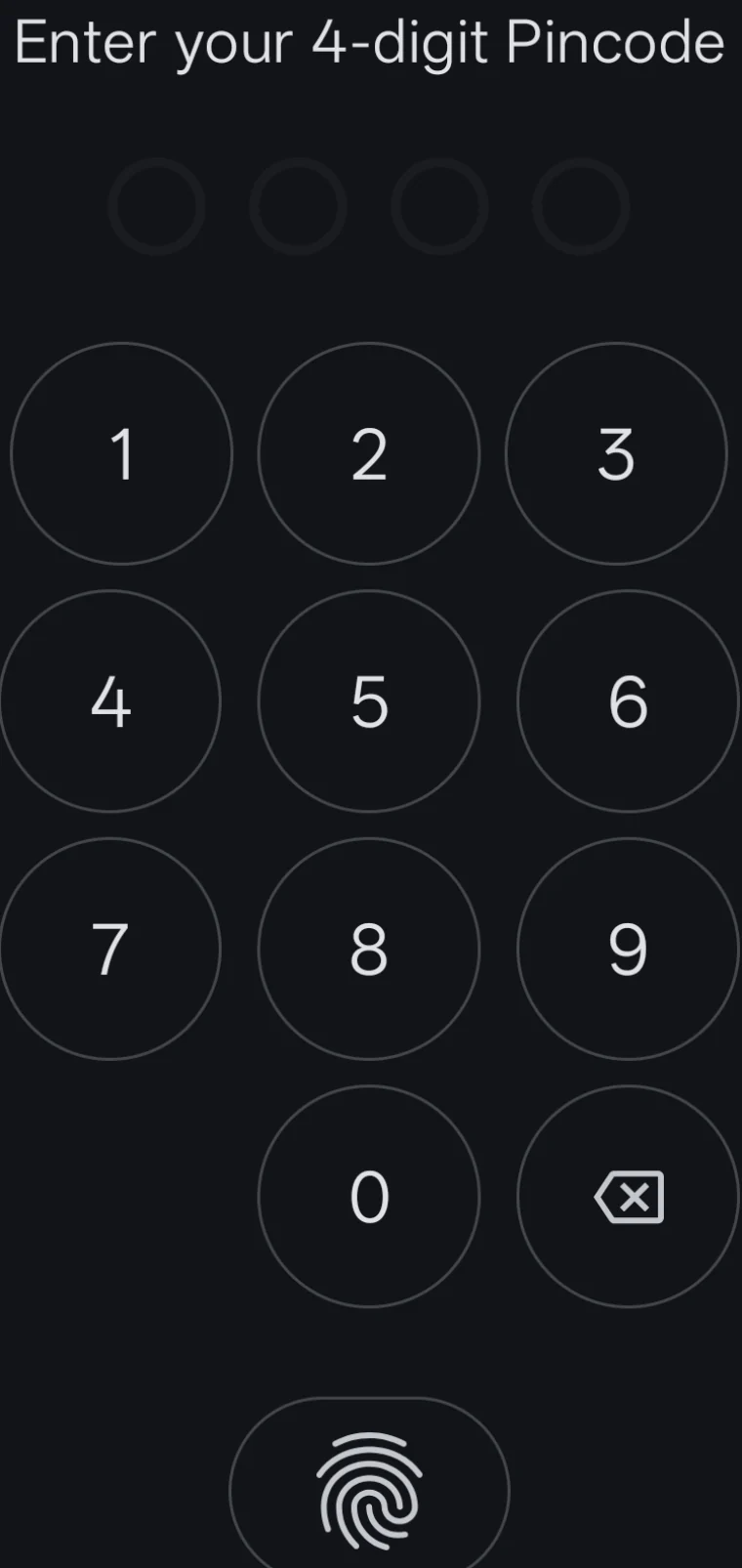
The PIN screen
Turning the Password switch on opens the PIN setup screen: Bluecoins asks you to create a four-digit Pincode, then to confirm it. On later launches the lock shows the same screen in reverse — Enter your 4-digit Pincode — with four dots that fill as you tap the on-screen number pad, a delete key, and a fingerprint button below it. If you have a fingerprint registered in your device settings, tap that button to unlock without typing the PIN. Turning the switch off asks for the PIN once, then removes it.
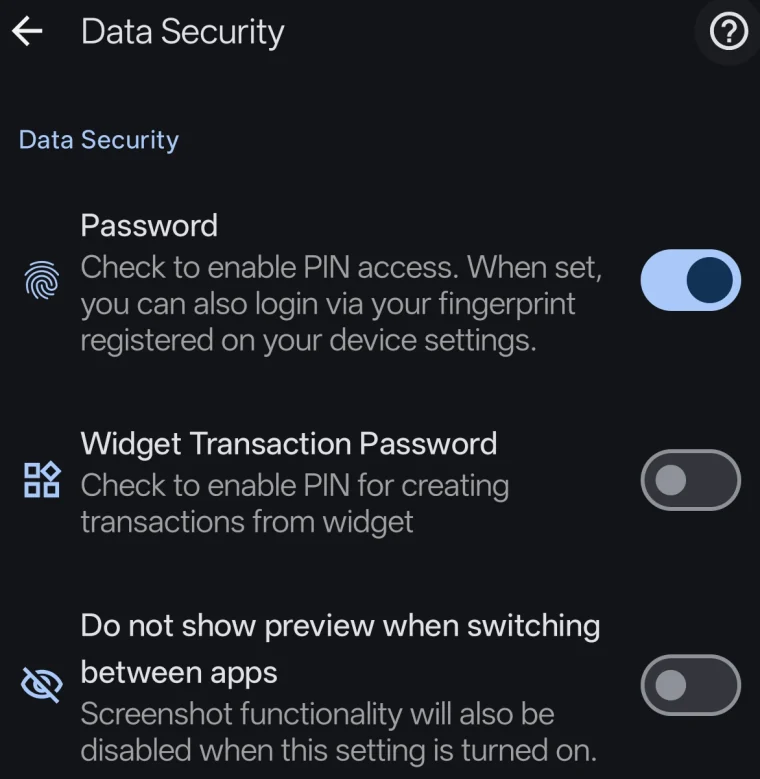
Options
- Password — enables PIN access. When a PIN is set, you can also log in with the fingerprint registered on your device. Setting or removing the PIN runs through the PIN setup screen, which asks for the PIN before any change takes effect.
- Widget Transaction Password — require the PIN when creating transactions from the home-screen widget (available once a PIN is enabled).
- Do not show preview when switching between apps — hide Bluecoins’ window preview in the recent-apps screen, so the app’s contents do not appear in the app switcher. The screen’s own note adds that screenshot functionality is also disabled while this setting is on.
How it protects you
The PIN is stored as a salted SHA-256 hash in encrypted storage — Bluecoins never keeps your PIN in plain text. Beyond the lock itself, Bluecoins is private by design: bank-notification logging reads notification text only and never stores bank credentials, and transaction data stays on your device and your chosen backup.
Practical tip
Enable the PIN even if you are the only user — it is the difference between someone glancing at your balances and not. If you add transactions from the home-screen widget in public places, enable the widget transaction password too, and keep “do not show preview” on if you switch apps frequently.