Guide
Net earnings
Your income and expenses grouped by category, with current and previous-period totals side by side — the report behind the Net Earnings home tab and dashboard card.
Net earnings answers the core question of a money tracker: over a period, what did I earn and what did I spend? Bluecoins groups your income and expenses by category and shows the totals for the period you are looking at, next to the totals for the period before it, so you can see the difference at a glance.
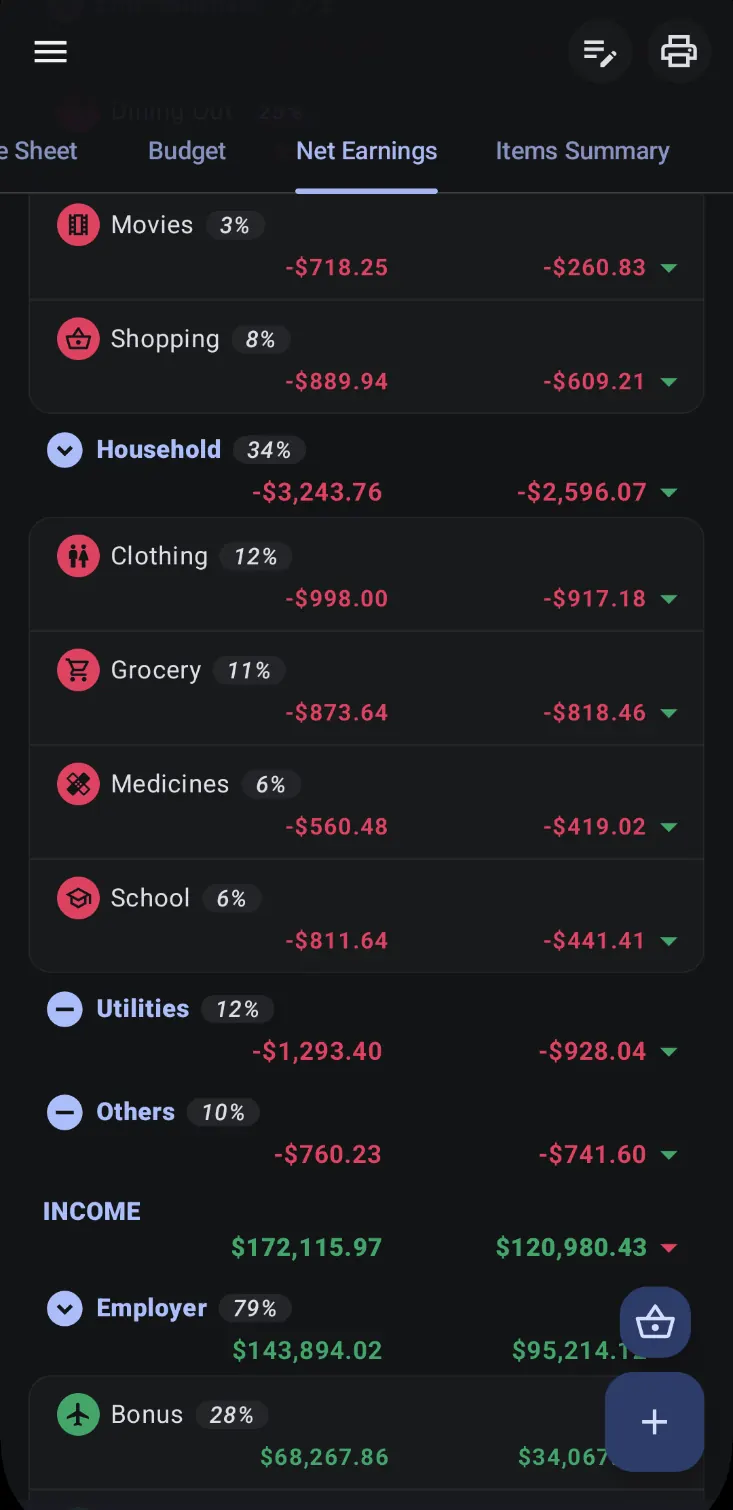
Open it from the Net Earnings home tab, from the Net Earnings card on the dashboard, or as a tab in the calendar report.
How net earnings is calculated
The report adds up your income and expense transactions by the category assigned to each one:
- Income — the categories you record money coming in under, such as salary, bonus, or interest, grouped under an Income heading.
- Expenses — the categories you spend under, such as groceries, utilities, or transport, grouped under their category parents.
- Net earnings — income minus expenses. A positive figure is what you kept for the period; a negative figure is a loss.
The totals include expenses you have not paid yet (an unpaid bill is still an expense) and credit-card purchases at the moment you make them — not when the card is paid off. That is what separates net earnings from cash flow, which only counts money that actually moved in or out of your cash accounts.
Reading the table
Each row shows a category (or a category type) and its share of the period’s income or expenses. The report can show a single column — the current period only — or two columns, where the second column is the same figure for the comparison period and a small arrow marks whether it went up or down. Tapping a parent row collapses or expands its children, and tapping any row opens the transactions behind that number, split into income and expenses. See the transactions guide for the list itself.
The period is set with the date control at the top: today, this week, the last 7, 14, 28, or 30 days, this month, this quarter, or this year — or a custom date range. For a single column, turn on Show Current Balance Only in the report’s filter. Net earnings is one of the time-based reports that can also look ahead: with Future Projection turned on, the report reads forward instead of back, using your scheduled reminders and any future-dated transactions — see the cash-flow guide for how projections work and the reminders guide for how recurring entries are set up.
The Net Earnings card
The dashboard’s Net Earnings card shows the same figure as a chart across recent periods, with a summary table of income, expense, and net earnings underneath. Tapping the card opens the full report. A single month is only part of the picture, so the card is meant to be read as a trend rather than a single number — see the dashboard guide for the cards you can put on the home screen.