Guide
Calendar
The monthly calendar report — daily income, spending, and balances at a glance, with day and month modes plus the four tabs behind each date.
The calendar report is Bluecoins’ day-by-day view of your money. Where the cash-flow report shows trends over time, the calendar answers the narrowest useful question: what happened on this day, and what did my accounts look like at the end of it.
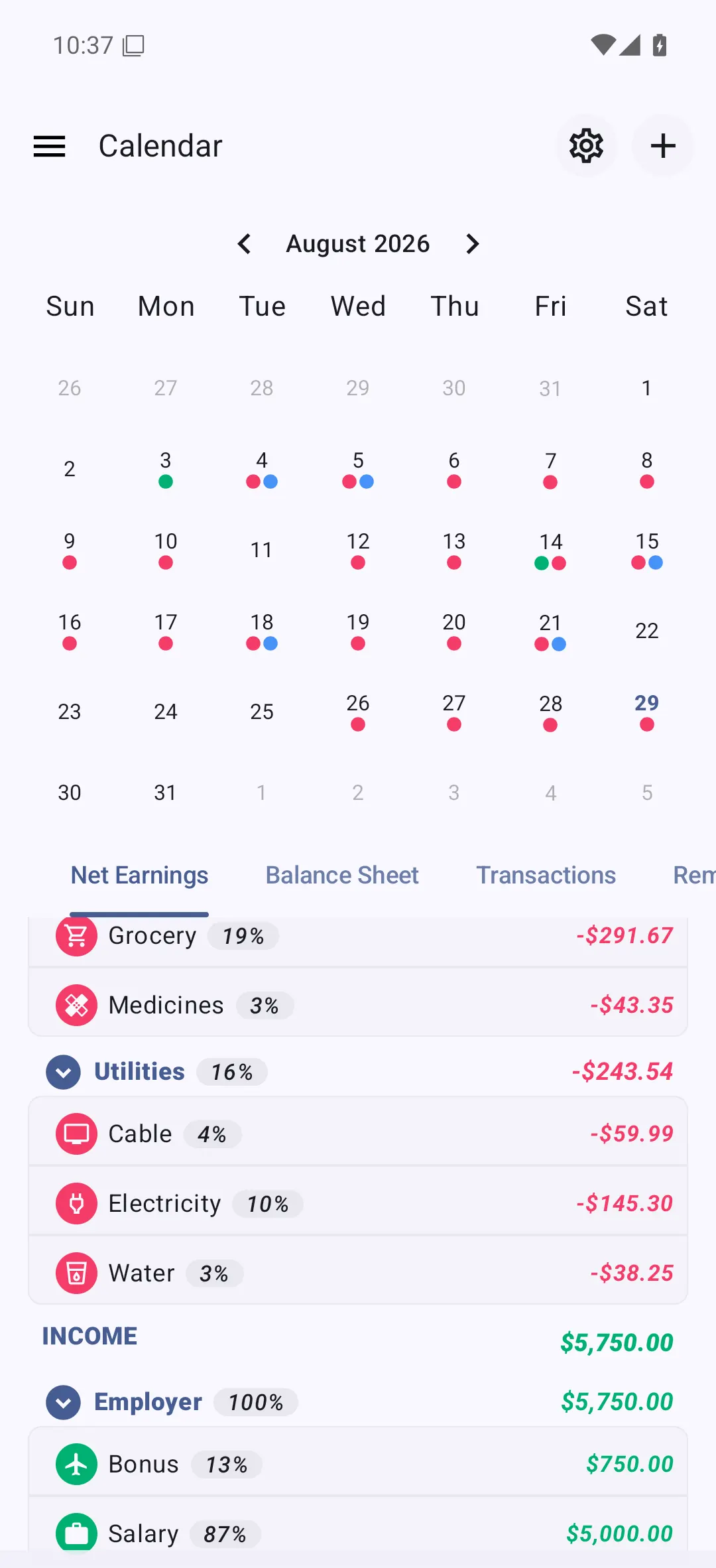
Open it from the Calendar item in the app drawer, or by tapping the calendar card on the dashboard.
The month grid
The top of the screen is a month grid with the days of the week across the top. Each day can carry small colored dots, one per kind of activity on that day:
- Income — a green dot when money came in.
- Expense — a red dot when money went out.
- Transfer — a blue dot when you moved money between your own accounts.
- Reminder — a dot when a scheduled reminder falls on that day.
The dots are a summary, not a total: they tell you at a glance which days have activity, leaving the amounts to the tabs below. Swipe the grid left or right to change the month, and tap a day to select it.
Day mode and month mode
The calendar has two selection modes, and the tabs below follow whichever one is active.
- Month mode is the default: no specific day is selected, so the tabs summarize the whole month.
- Day mode is active when a day is selected. Tap a day to switch to it, and tap the selected day again to clear the selection and return to month mode.
So the four tabs below are a month summary by default, and a single-day breakdown the moment you pick a date.
The four tabs
Each tab shows the same period (the selected day, or the whole month) from a different angle.
Net earnings
Income and expense grouped by category for the period, with each category’s share of the total — the same figures as the net-earnings report, scoped to the day or month you are looking at. See the cash-flow guide for how net earnings differs from cash flow. This works for past months too: navigate back to any earlier month and the category breakdown updates to match. Every month is available without Premium; only Future Projection needs it.
Balance sheet
Your account balances at the end of the selected day or month, grouped the way the balance sheet groups them. Select a past date to see the balance as it stood then; this is the tab to use to answer “what did I have on that day?” See the balance sheet guide for how the accounts are organized.
Transactions
The list of transactions for the period, in date order with running balances and the same row detail as the main transaction list — open any row to view or edit it. See the transactions guide.
Reminders
The reminders and installments due in the period, so you can look ahead at a future month and see what is scheduled. This is the plain-list counterpart to the reminders guide.
Future projections
With Future Projection turned on, selecting a future date shows projected balances and figures, built from your scheduled reminders and any future-dated transactions. Projected amounts are shown in italics so they are never mistaken for recorded values.
Future Projection is a premium feature, and it is switched on in the calendar’s own settings (app drawer → Settings → Calendar) — see the calendar settings for the switches there. Turning it on without Premium opens the upgrade screen instead.
Related
- Dashboard and home screen — the dashboard’s own calendar card, which opens the day’s transactions without leaving the home screen.