Guide
Transactions
Record income, expenses, and transfers — amount, category, account, split entries, attachments, status, and smart defaults that speed up entry.
Transactions are the heart of Bluecoins. Everything else — budgets, reports, balance sheets, cash flow — is built from the income, expenses, and transfers you record. The transaction form is designed for speed: the app remembers your usual choices so most entries take a few taps.
The form
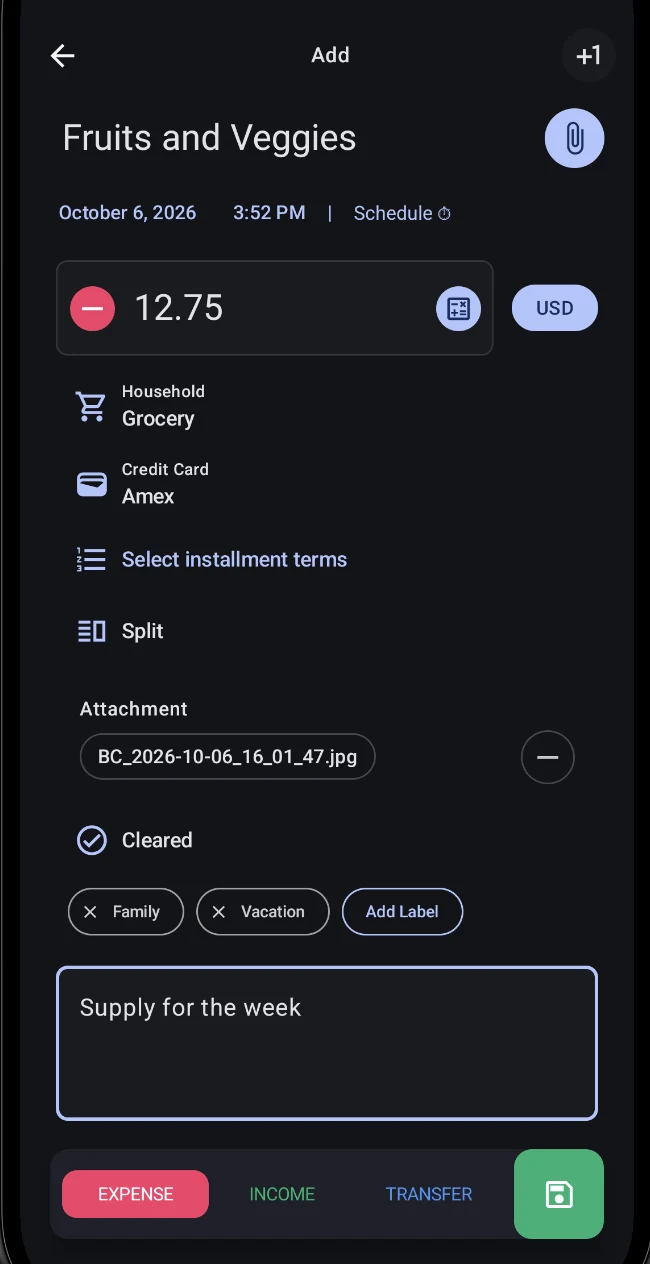
Every transaction records the same core set of fields:
- Type — Expense, Income, or Transfer, chosen at the bottom of the form.
- Amount — with an explicit sign and a currency button. For foreign-currency entries you set the exchange rate used for this transaction.
- Category — pick one (or more, for split transactions). See the categories guide.
- Account — the account the money goes in or out of. Transfers have a from-account and a to-account, plus an optional transfer fee. See the accounts guide.
- Date and time — today by default, easily changed.
- Payee (name) — with autocomplete from names you have used before.
- Notes — free text attached to the entry.
- Labels — colored tags that let you slice your transactions across categories.
- Attachments — photos, files, or anything from your device, added via a camera/gallery/file picker.
- Status — None, Cleared, Reconciled, or Void, for matching against bank records.
How the three types affect your money
Bluecoins keeps the three types apart because they do different things to your accounts. Your net worth is your assets minus your liabilities, and each type moves it differently:
- Expense — money leaves your accounts. An expense reduces an asset account, or increases what you owe on a liability account such as a credit card, so it reduces your net worth.
- Income — money arrives. Income adds to an asset account, so it increases your net worth.
- Transfer — money moves between your own accounts. A transfer is never an expense and never income, so it does not change your net worth — it only changes where the money sits. Moving money between two accounts on the same side (two assets, say) leaves that side’s total, and your net worth, unchanged, even though each account’s balance moves.
That last point is the one that can look wrong: after a transfer the source account is lower and the destination account is higher, so the money is in one place, not both. The balance sheet guide shows how those balances roll up into assets, liabilities, and net worth.
Smart defaults
The form remembers the last account and category you used, and keeps per-type history — so the last expense category and the last income category are remembered separately. Amounts can be typed on the keyboard or punched into a calculator pad, with a pop-out calculator option.
Split transactions
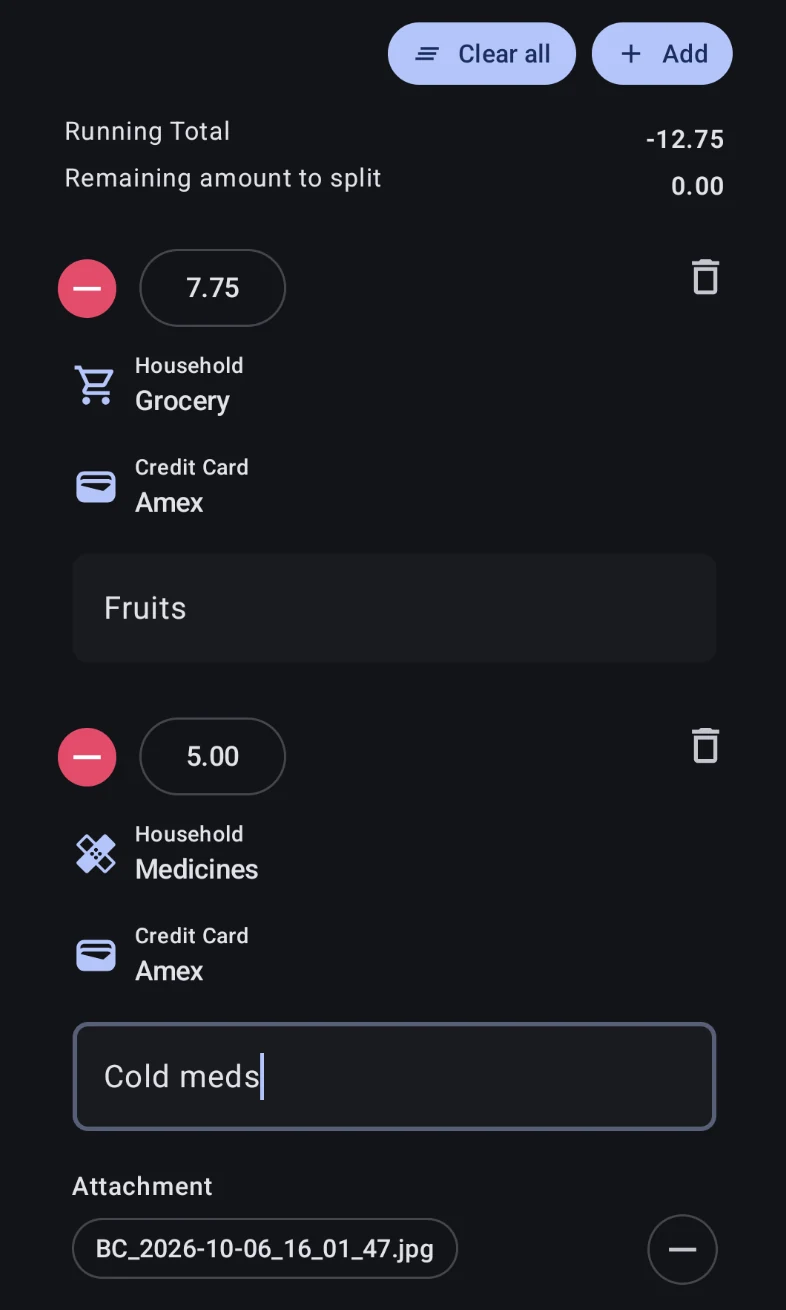
One entry can be split across multiple categories and accounts — a single purchase that belongs to more than one category, or one you want to itemise. Turn on Split, then use Add to create a leg for each part; every leg has its own amount, category, account, and note, and each can be removed with its own delete button. Clear all empties the legs to start over.
While you split, the form keeps a Running Total of the legs and a Remaining amount to split, so you can see at a glance how much of the original amount is still unallocated — when the remaining amount reads 0.00, the split adds up.
Duplicate
Create a copy of an existing transaction to adjust — the shortcut for logging a near-identical entry without re-entering every field.
Plus One
The +1 button in the form’s top bar saves the current entry and immediately starts a fresh one — the form stays open, so you can log a run of entries back to back without going home between them. A small confirmation appears after each save. This is different from Save, which writes the entry and closes the form.
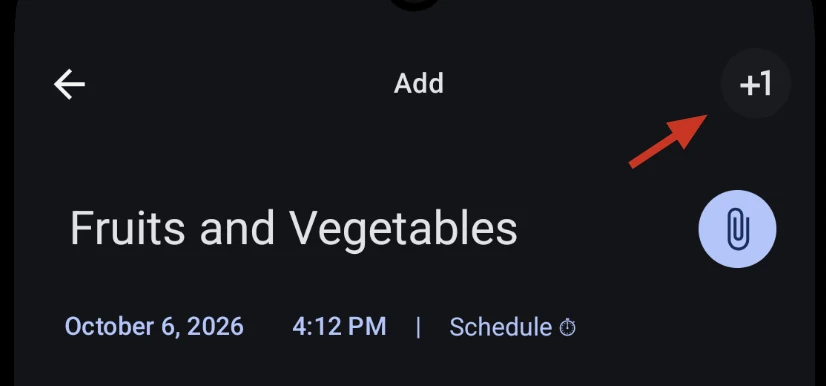
Long-press the +1 button to choose what the next entry keeps. The Plus One settings list is a set of fields — title, amount, category, account, notes, labels, and split — and each one you tick is cleared for the next entry. By default the title, amount, and notes are cleared while the account, category, labels, and split stay, so a batch of entries in the same account or category needs only a name and an amount each.
Saving and deleting
- Save writes the entry and closes the form. Reminders offer extra options when you edit one occurrence of a recurring series.
- Plus One (the
+1button) saves and stays on the form — see Plus One. - Delete soft-deletes the entry first — it moves to the trash and can be restored. A permanent delete removes it for good.
Reading vs. editing
Existing transactions open in a read-only view by default: the fields render as static labels, so nothing is editable until you deliberately tap Edit. New transactions always open directly in edit mode. This is a v13 feature for safer browsing — see the read-only mode guide for the full picture.
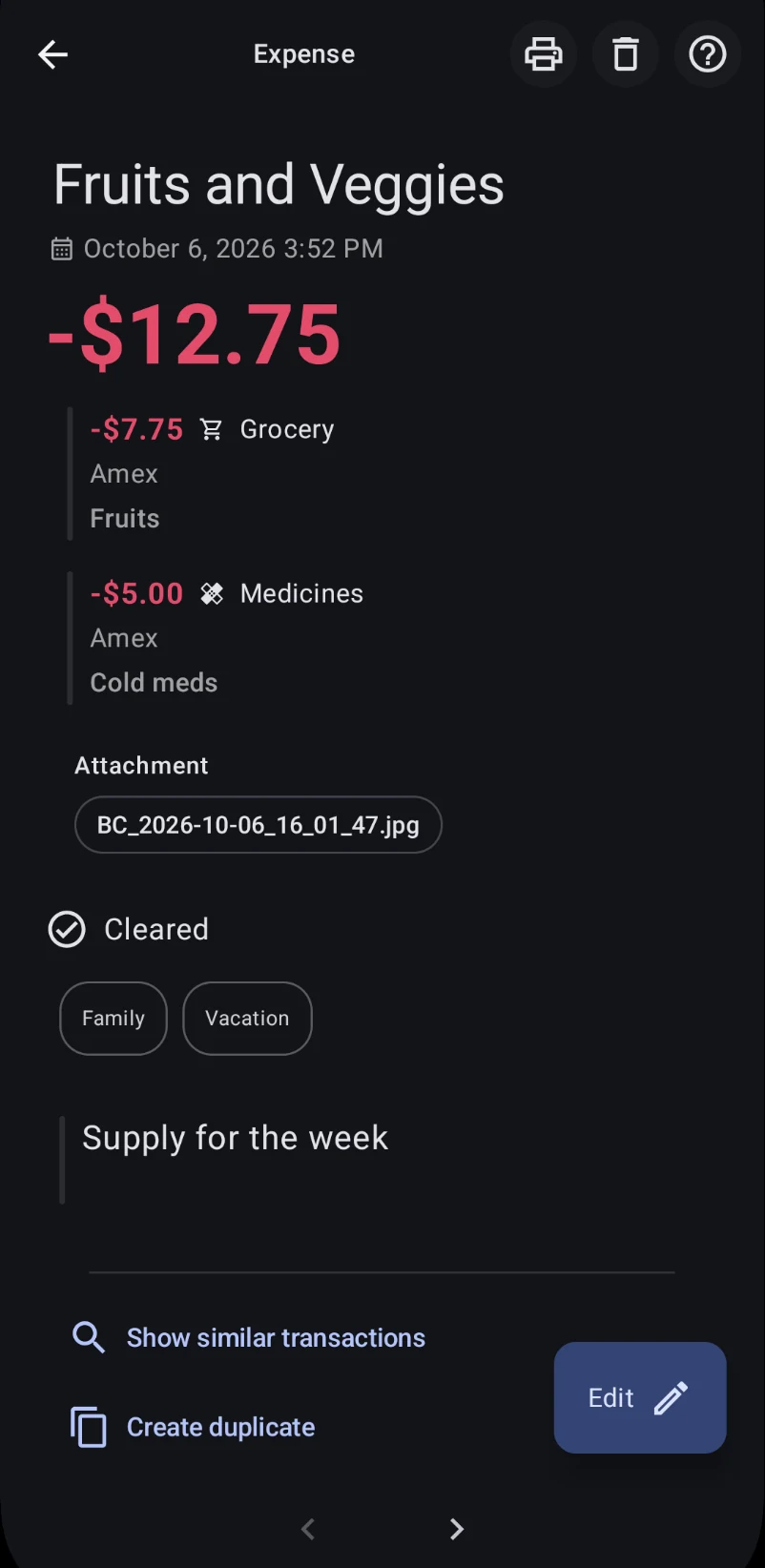
Below the summary the screen offers two shortcuts:
- Show similar transactions — opens a list of your entries that share this payee, so you can compare or find a related one.
- Create duplicate — starts a new transaction pre-filled from this one, ready to adjust and save. It is not offered for reminders.
At the very bottom, left and right arrows page through the list you opened the transaction from — each neighbour loads in place, so you can review several entries without returning to the list between them.
To skip the read-only step entirely, turn on Settings → Transaction Setup → Advanced Settings → Open transactions directly in edit mode (see transaction settings). Existing transactions then open straight into the editable form, and the two shortcuts appear there instead.
Marking a charge as not billed
When you edit a scheduled credit-card transaction — a reminder — the form shows a Not billed yet checkbox. Keep it checked to leave the purchase out of the card’s current statement, because it is not billed yet; clear it to bill the entry with the current statement. Installments start out checked, since a new installment has not been billed either.
The checkbox appears only while editing an existing credit-card reminder — never on a new transaction, a one-off entry, or a transfer. What you set here feeds the credit-card report’s not-billed figure and the balance sheet’s not-billed rows, so it is worth a look if a statement total seems off. See the credit cards guide and the balance sheet guide.
Creating scheduled transactions or reminders
The Schedule row on the form turns the entry you are making into a reminder — a transaction with a recurrence rule. Tapping it opens the schedule dialog, where you choose how often it repeats (once, daily, weekly, monthly, or annually, with custom “repeat every N” intervals) and, for a monthly schedule, whether it repeats by day of the month or day of the week.
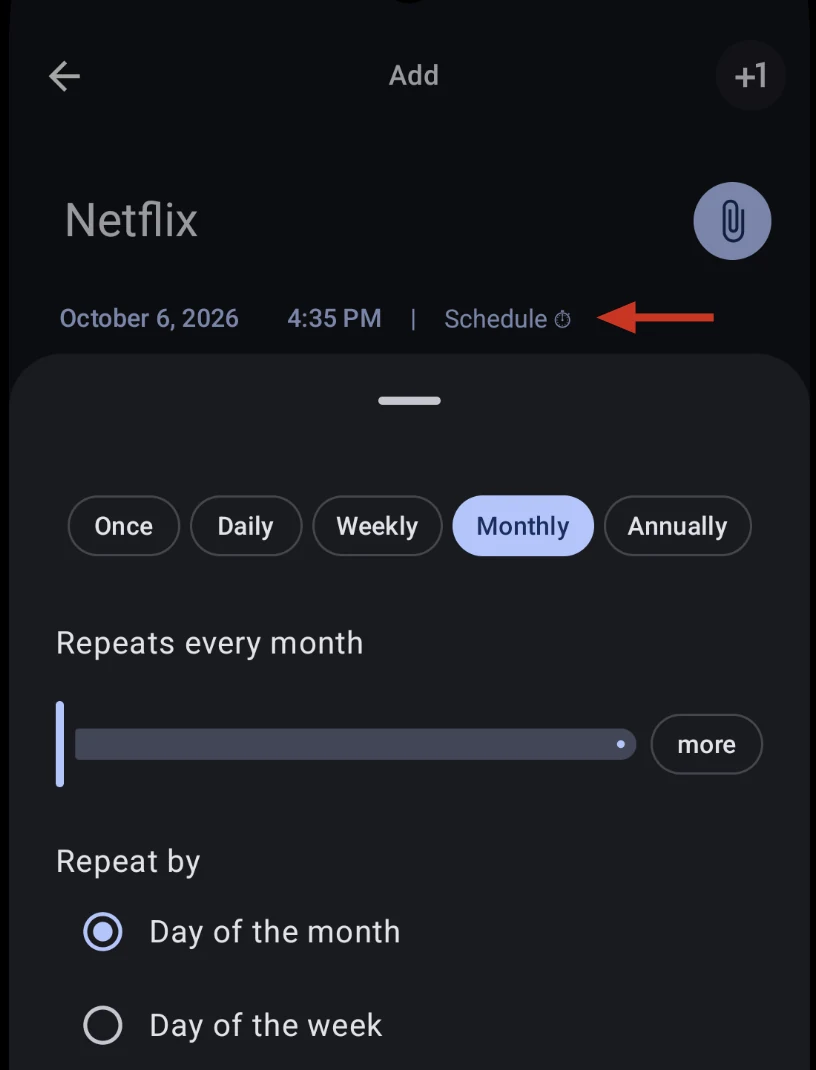
A reminder is an ordinary transaction with a schedule attached: you set it up from this same form, each occurrence is stored as a linked row so editing or deleting one part never changes the rest, and when an occurrence comes due the same form logs it as a real entry. That same reuse is why a transaction created from a bank notification is also just a normal entry you can edit, split, or delete like any other.
This is only a summary — the reminders guide covers the full detail: recurrence frequency and custom intervals, end conditions, weekend handling, automatic logging, editing or deleting a whole series, and credit-card due-date reminders.