Guide
Balance sheet and net worth
Assets, liabilities, and net worth built from your Account Groups — the two-column balance-sheet tab, per-account currencies, and the EACR toggle that controls foreign-currency normalization.
Your accounts in Bluecoins are grouped by Account Type — bank, cash, investments, credit card, and so on — and each Account Type belongs to an Account Group, Assets or Liabilities, which together form your personal balance sheet with your net worth as the difference. The balance-sheet report gives the snapshot; the net-worth report shows the trend over time.
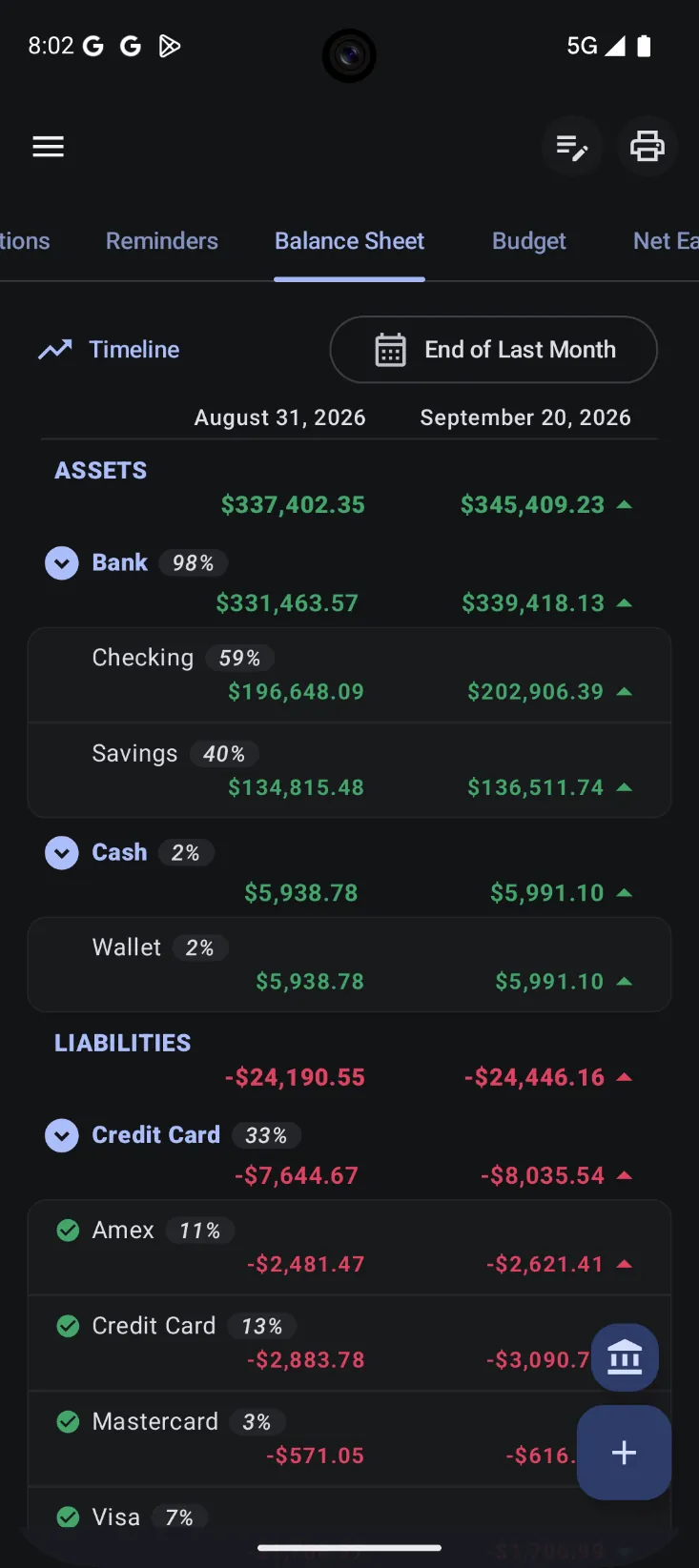
Reading the balance sheet
The balance sheet is the Balance Sheet tab on the home screen, and its default view compares two points in time. The left column is the balance at a date you choose — here End of Last Month, so August 31 — and the right column is the balance as it stands today. A green up-arrow or red down-arrow beside each amount marks how it moved between the two dates.
Accounts are listed under the same groups they belong to in the accounts list, assets first and liabilities below, with NET WORTH at the bottom. The percentage beside each group or account is its share of that side’s total — so at a glance you can see that most of the assets, or most of the debt, sit in one place.
Each row is a shortcut: tap a group, an account, or the net-worth row to open that account’s transactions, already filtered to the period the balance covers.
The date button next to “Timeline” changes the comparison — End of Last Month, End of Last Year, Same Time Last Year, or a custom date, among others. The filter icon in the top bar opens the rest of the options, including Current balance only (which drops the left column for a single, right-aligned column), currency display, hidden accounts, and zero-balance rows.
Two of the rows track credit-card debt that is not on a statement yet: Not billed yet and Less: not billed yet (the line that subtracts it from net worth). They count the remaining not-billed reminders dated on or after the report date — future occurrences that have not been logged yet — so the figure matches what the credit cards guide shows.
How the balance sheet is built
Every account belongs to a group, and the groups determine which side of the sheet the account lands on:
- Assets — cash, bank accounts, wallets, and other things you own.
- Liabilities — credit cards and other money you owe.
An account’s Account Type says what it is, and the Account Group that type belongs to — Assets or Liabilities — decides which side of the sheet it lands on. The accounts guide lists every Account Type and the group it belongs to.
The balance-sheet report summarizes each group, and your net worth is what remains when liabilities are subtracted from assets. Because accounts carry their own currency and conversion rate, foreign-currency accounts are converted into your default currency for the summary.
Reports
- Balance-sheet report — the assets-versus-liabilities snapshot at a point in time.
- Net-worth report — how your net worth moves over time, so you can see the trend rather than just the current number.
The dashboard also has a favorite accounts card, so the balances you care about most are visible without opening a report.
Foreign currencies and the EACR toggle
Bluecoins is multi-currency: an account can be denominated in any currency, and each transaction records the exchange rate that was in effect when it was created. Over time an account’s conversion rate can change — the USD→PHP rate you use today may not be the one from six months ago. The balance sheet has to decide how to aggregate those transactions, and a toggle controls that choice.
EACR stands for Effective Average Conversion Rate, exposed in the balance-sheet filter dialog as “Calculate balance using EACR”. With EACR off (the default), historical foreign-currency amounts are normalized against the account’s current conversion rate; with EACR on, every transaction contributes its raw face value and the default-currency equivalent appears as a secondary line. The full explanation — the calculation, worked examples, and which view fits your situation — is on the EACR guide. See the multi-currency guide for how conversion rates work across the app.