Guide
Categories
How categories work in Bluecoins — individual categories, the Category Type each one belongs to, and the Expense/Income Category Group above them.
Categories are how you label what a transaction was for — Groceries, Fuel, Salary. Every category belongs to a Category Type (Household, Car, Utilities, and so on), and every Category Type belongs to a Category Group: Expense or Income. The same structure drives budgets, reports, and the category pickers.
Categories
A category is the leaf you pick on a transaction. It has a name, an icon, an optional budget, and a Category Type. A category can be hidden from the pickers without being deleted.
Bluecoins ships with defaults such as Groceries, Fuel, Movies, Salary, and Bonus. Add your own from the categories list with Add New Category, and rename, re-icon, or delete them at any time.
Category Types
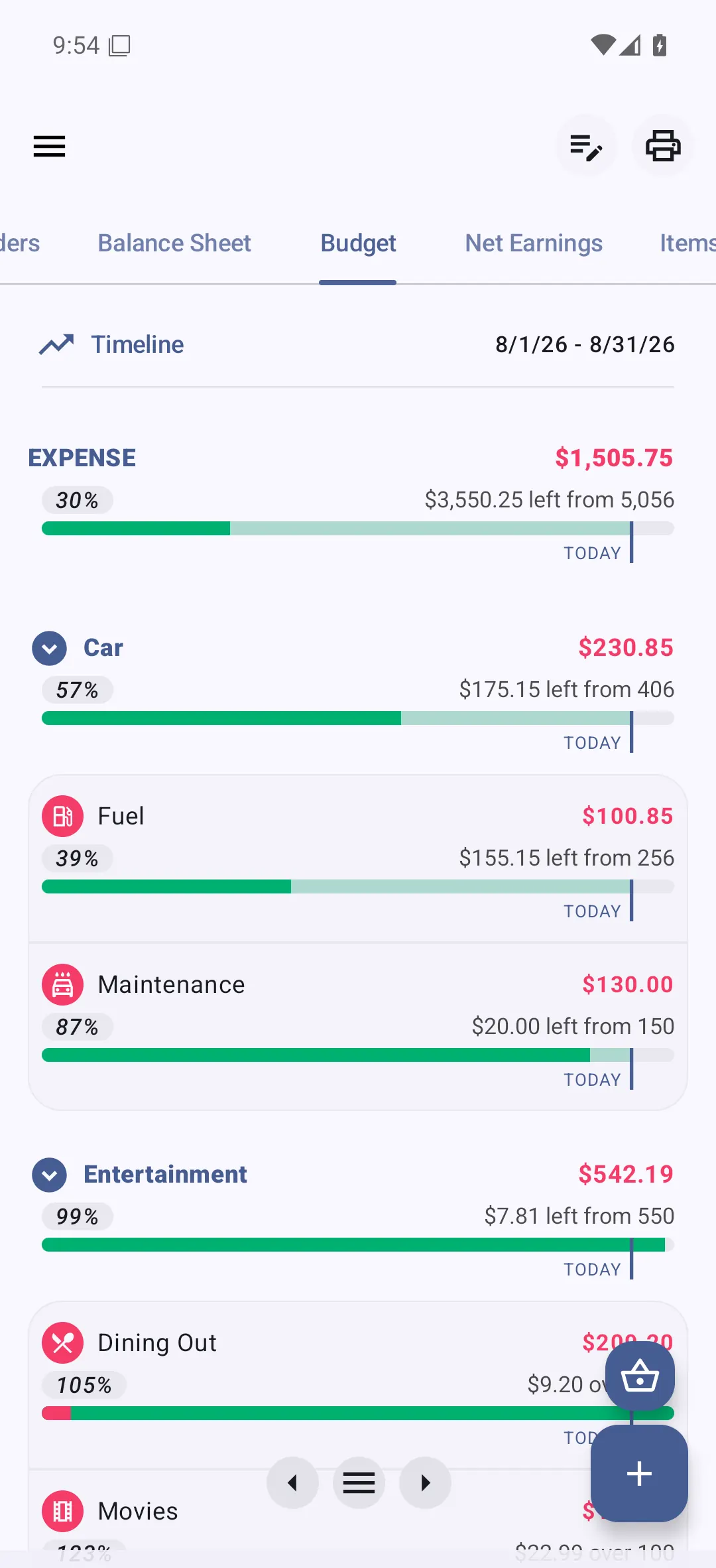
A category’s Category Type is the grouping above it: Household, Car, Utilities, Entertainment, Employer, and so on. It collects related categories and can carry its own budget and report, which is why the budget report shows a type total with its categories underneath.
Naming note: the Category Setup screen labels this field Category Type, and the menu that creates one is Add New Category Type.
Like accounts, the types are only the defaults created during setup — Household, Car, Utilities, Entertainment, and Employer — and you can rename them, add your own, or delete the ones you do not use.
Category Groups
Above the Category Type sits the Category Group: Expense or Income (labeled Category Group on the Category Setup screen). A Category Type belongs to one group, so every category is ultimately an expense category or an income category, and the category picker only offers categories of the matching group:
- Expense — spending categories such as Groceries, Fuel, and Rent; the ones you pick when you record an expense.
- Income — earning categories such as Salary and Bonus; the ones you pick when you record income.
A few categories are built in and are not ordinary expense or income categories: No Category (for entries with no category), Transfer (the system category behind transfers), and New Account (behind opening balances). They are created by the app and normally stay out of the way. See the transactions guide for how the three transaction types use them.
Budgets by category or by type
Budgets live in the Categories feature. You can budget either per category or per Category Type, and enabling one turns the other off for that branch, so a limit is never counted twice. The budget guide covers the cycles, the custom month-by-month plan, and the budget-vs-actual report.
Categories, labels, and payees
Categories are the fixed tree; labels are free-form tags you can add to any transaction without creating a category, and payees (items) record who the money went to. The labels guide explains when to use each.