Guide
Dashboard and home screen
The home screen in Bluecoins — configurable tabs and a dashboard of cards (accounts, budgets, cash flow, net worth, credit cards) you can reorder and customize, including a calendar card that opens any day's transactions.
The dashboard is the home screen you land on when you open Bluecoins: a scrollable set of tabs, each holding a different view of your money. Both the tabs and the cards on the main tab are configurable, so the app can show the numbers you actually care about instead of a fixed layout.
Home tabs
The top of the home screen is a tab bar. Which tabs appear — and in what order — is driven by your configuration. The available tabs are:
- Main — the dashboard card wall described below.
- Transactions — your live transaction list with filters.
- Labels — spending summary per label.
- Payees — spending summary per payee.
- Reminders — upcoming reminders and installments.
- Net earnings — income-versus-expense summary.
- Balance sheet — your account balance snapshot.
- Budget — budget versus actual per category.
Dashboard cards
The Main tab is a wall of cards, each an independent mini-view that loads lazily and can be reordered by dragging. Available cards:
- Account — balance of a single account.
- Favourite accounts — balances of the accounts you pinned.
- Budget pie — budget usage as a pie chart.
- Calendar — a month grid you can tap any day on to see that day’s transactions.
- Cash flow — income versus expense bar chart.
- Credit card — credit-card statement summary.
- Daily — today’s and recent spending.
- Net earnings — net-earnings chart.
- Net worth — net-worth trend over time.
Tapping a date on the calendar card
The Calendar card is the quickest way to look at a single day without leaving the home screen. Its month grid carries the same activity dots as the full calendar report, so you can see at a glance which days have money moving — then tap any date to open it.
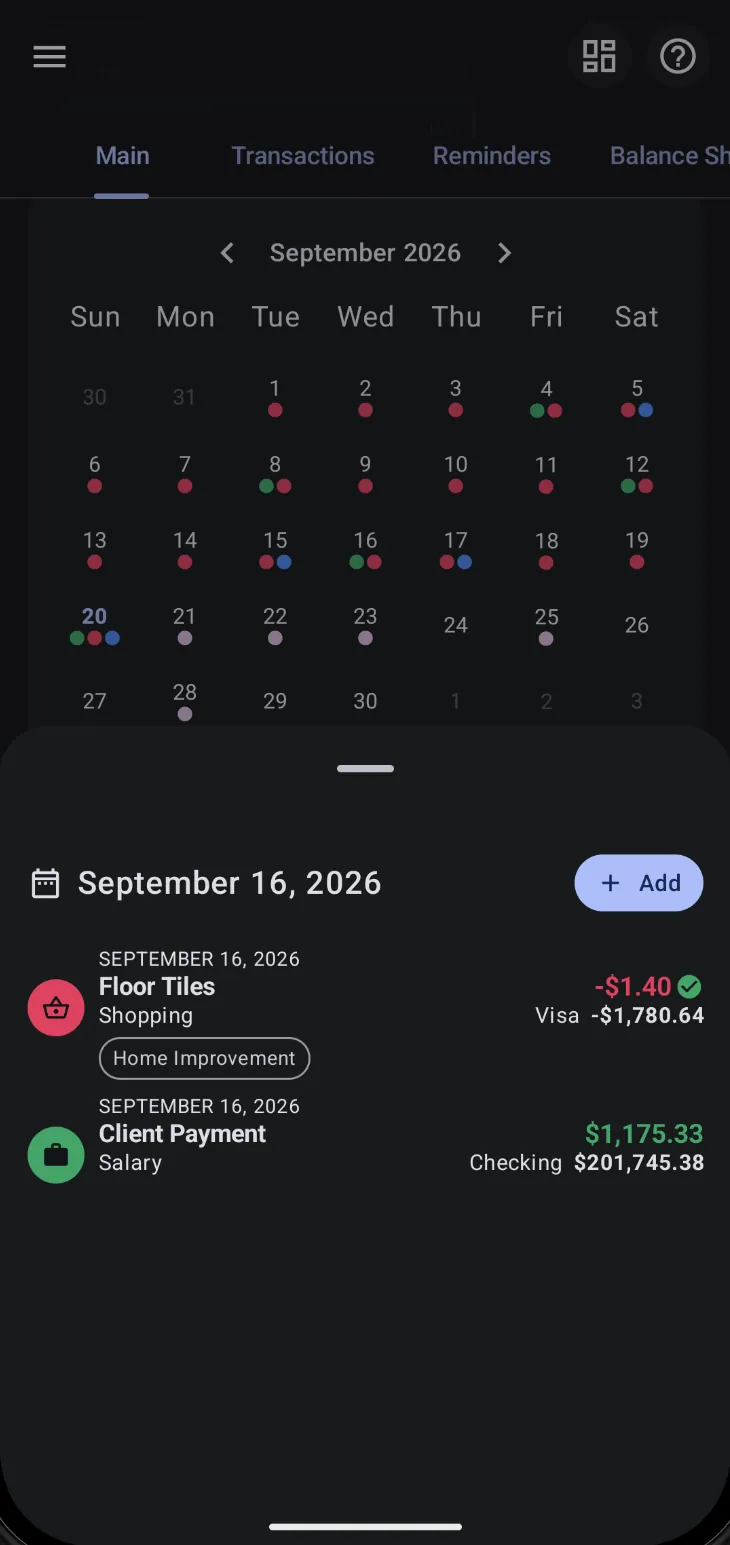
Tapping a date raises a sheet from the bottom of the screen with everything you need for that day:
- The date as a heading — the sheet is titled with the selected day, so there is no doubt which day you are looking at.
- The day’s transactions — each row shows the payee, category, amount, and the account with its running balance, exactly as the transaction list does. Open any row to view or edit that transaction.
- An Add button — the + Add button in the sheet’s header starts a new transaction already dated to the selected day. It is the fastest path from “I spent something on the 16th” to a recorded entry, without leaving the dashboard or re-picking the date.
- Swipe between days — the sheet pages left and right, so once it is open you can move to the previous or next day without going back to the grid.
Dismiss the sheet to return to the dashboard with nothing changed. This is a read-and-record shortcut; the full calendar report is still where you go for the month summary, the balance-sheet and net-earnings tabs, and future projections.
Customizing the dashboard
Dashboard layout and tab configuration live in Settings → Appearance: the dashboard screen manages which cards appear and their arrangement, and the tabs screen manages which home tabs exist and their order. Both are personal-preference settings — changing them never touches your transactions.
The dashboard versus home-screen widgets
The dashboard is inside the app. If you want balances, reminders, or a quick-add button on your Android home screen, Bluecoins also ships five Android widgets — see the widgets guide for those. The two are separate surfaces over the same data.
Related
- Widgets — the Android home-screen counterpart.
- Balance sheet and net worth — the balance-sheet tab and net-worth card.
- Credit cards — the credit-card dashboard card and statement summary.
- Reminders and recurring transactions — the reminders tab.