Guide
Premium verification issues
Troubleshooting when Bluecoins does not recognise your Premium purchase — check the Play Store account, reset the Play Store cache, and back up and restore your data when reinstalling.
Premium is a one-time purchase that Bluecoins verifies against Google Play Billing. On most devices this just works, but occasionally the app can fail to recognise a purchase you have already made — you see ads, or the app still shows the standard version. This page walks through the fixes, from the quickest to the most involved.
First, restart the app
Bluecoins checks your purchase status when it starts. If you upgraded and the app still shows the standard version, the simplest fix is to fully close Bluecoins and open it again:
- Close Bluecoins completely — swipe it away in the Recent apps screen (or use the task manager).
- Reopen the app.
In most cases the app re-verifies the purchase on launch and Premium is restored. If ads are still showing after a restart, continue below.
Check the Google Play account
Bluecoins verifies Premium through the Google account that owns the purchase. If you have more than one Google account on your phone, the app can check the wrong one. You can see which account the Play Store is using on your phone:
- Open the Google Play Store app.
- Tap your profile picture in the top-right corner.
- Check the email address under your name — this is the account currently signed in to the Play Store.
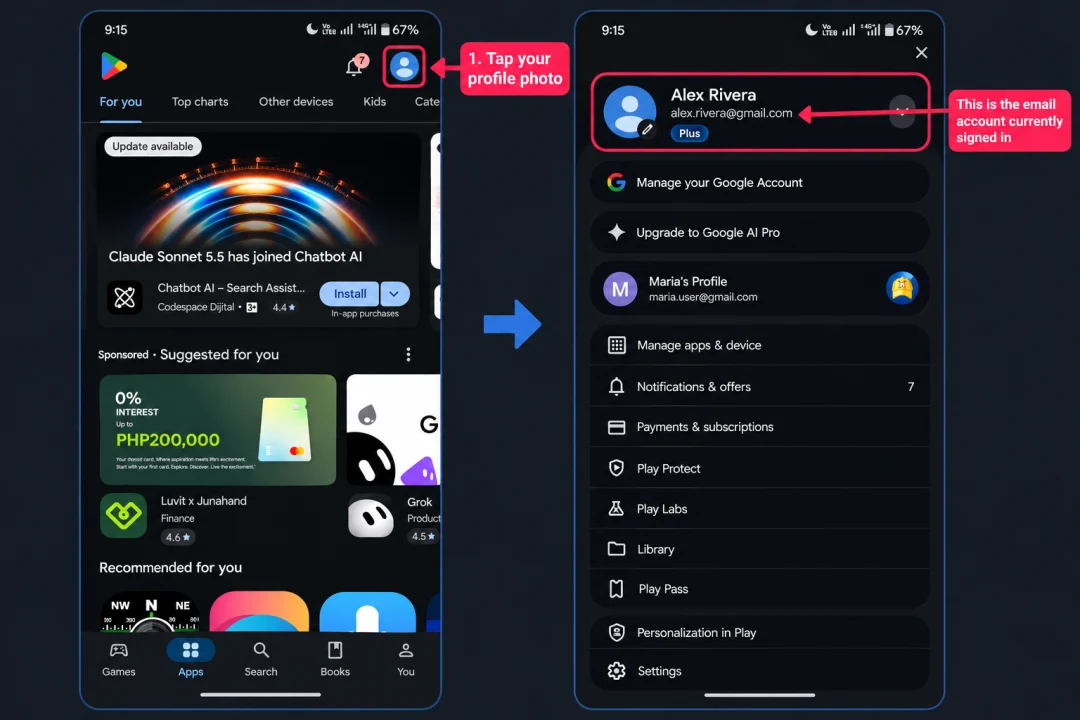
- Make sure you downloaded or updated Bluecoins using the same Google account you used to buy Premium.
- It is not enough for the account to be registered on the phone — the Google Play Store app itself must be switched to the right account.
If the Play Store is on a different account
Switch to the account that owns the purchase, then install Bluecoins again from it:
- In the Play Store, tap the arrow next to the account and switch to the account you used to buy Premium.
- Back up your Bluecoins data first — reinstalling removes the app and its local data. See Data Management settings.
- Uninstall Bluecoins.
- Reinstall Bluecoins from the Play Store with the correct account selected.
- Restore your backup — see Restore your data after reinstalling below.
If the Play Store is on the correct account
The account is not the problem, so continue with Reset the Google Play Store cache below. That fix also uninstalls and reinstalls Bluecoins, so back up first (see Data Management settings) and restore your data afterwards.
Reset the Google Play Store cache
If you see a message that you already own the item, or the purchase is not being recognised, Google Play services may be out of sync. Resetting the Play Store cache usually fixes this — but the fix uninstalls Bluecoins and installs it again, so back up first.
This step removes Bluecoins and its local data from your phone. Create a backup before you start: open Settings → Data Management → Phone Storage and tap Backup to phone storage (see Data Management settings). You will restore that backup after reinstalling Bluecoins.
- Back up your Bluecoins data first, then uninstall Bluecoins.
- Open your phone’s Settings, then under Apps (or Applications) find Google Play Store.
- Force stop the app, then clear its data (under Storage).
- Launch the Play Store, accept the terms, and let it install any updates.
- Reinstall Bluecoins using the same Google account as in the previous section.
- Restore your data — see Restore your data after reinstalling below.
Restore your data after reinstalling
Uninstalling Bluecoins deletes the app and its local data, so a fresh install starts empty. Restore the backup you made before the reset:
- From phone storage — open Settings → Data Management → Phone Storage, tap Restore from phone storage, and pick the
.fydbbackup file you created. Bluecoins restarts with your data. See Data Management settings. - From the cloud — if Online Sync is set up, open Settings → Online Sync and use the restore option to pick a backup from Google Drive, Dropbox, or OneDrive. See Online Sync settings.
After restoring, open Bluecoins and check whether Premium is recognised.
Still stuck?
If none of these steps restore your Premium, contact us at support@bluecoinsapp.com and we will help you sort it out.
For more on what Premium includes, how to upgrade, and what to do if the purchase itself fails, see the Premium settings. To support development, see the support page.